Manage, restore or cancel your subscription
Moneyfesting Pro is an App Store subscription, so Apple handles billing. You can manage it from the app or from the Settings app.
Updated 10 November 2026. Steps checked on iOS 26.1.
In Moneyfesting
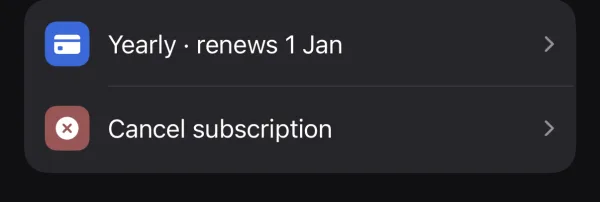
Open Profile and scroll to Subscription:
- Your plan, for example "Yearly · renews 1 Jan": tap it to open Apple's subscription screen, where you can change or cancel the plan.
- Switch to yearly appears on weekly plans.
- Update your payment method appears when a payment fails, and opens your Apple Account's billing page.
- Cancel subscription first explains what locks, then takes you to Apple's screen to confirm.
In the Settings app
- Open Settings and tap your name.
- Tap Subscriptions, then Moneyfesting.
- Change the plan, or tap Cancel Subscription.
Apple's own steps are in Cancel a subscription from Apple.
On a new iPhone
Sign in with the same Apple Account, install Moneyfesting and open the plans screen. Tap Restore. Your plan comes back without paying again.
What changes when Pro ends
After the last paid day, app blocking, Insights and the widgets lock. Your data stays on your iPhone, and they unlock again when you subscribe.
Deleting the app does not cancel the subscription. Cancel it first, in the app or in Settings.
Refunds
Apple handles refunds. Ask on Apple's Report a Problem page, or see Request a refund.
Questions
If I cancel, can I keep using Pro until the end of the period?
Yes. Pro stays on until the last day you paid for.
Restore says there is nothing to restore
Check that you are signed in with the Apple Account that bought the plan, under Settings, then your name, then Media & Purchases.