Start a focus session when a Focus turns on
Turn on Do Not Disturb, Work or any other Focus, and Moneyfesting starts a focus session that blocks your chosen apps. One Shortcuts automation sets it up, once.
Updated 9 November 2026. Steps checked on iOS 26.1.
What happens
When the Focus turns on, Shortcuts opens Moneyfesting and starts a session with the length and blocked apps set on its main screen, as if you had tapped Start Focus yourself.
Turning the Focus off later does not end the session. You end it in Moneyfesting, as usual.
Before you start
- An iPhone with iOS 26 or later, and Apple's Shortcuts app, which comes with it.
- Moneyfesting Pro, which includes focus sessions and blocking. Without it, Moneyfesting opens on its subscription screen instead.
- Your session length and the apps to block, chosen on Moneyfesting's main screen. The automation uses them.
- A Focus. Do Not Disturb comes with every iPhone, and you can add others in the Settings app under Focus.
Set it up
It takes about a minute, once.
- Open Shortcuts and tap Automation.
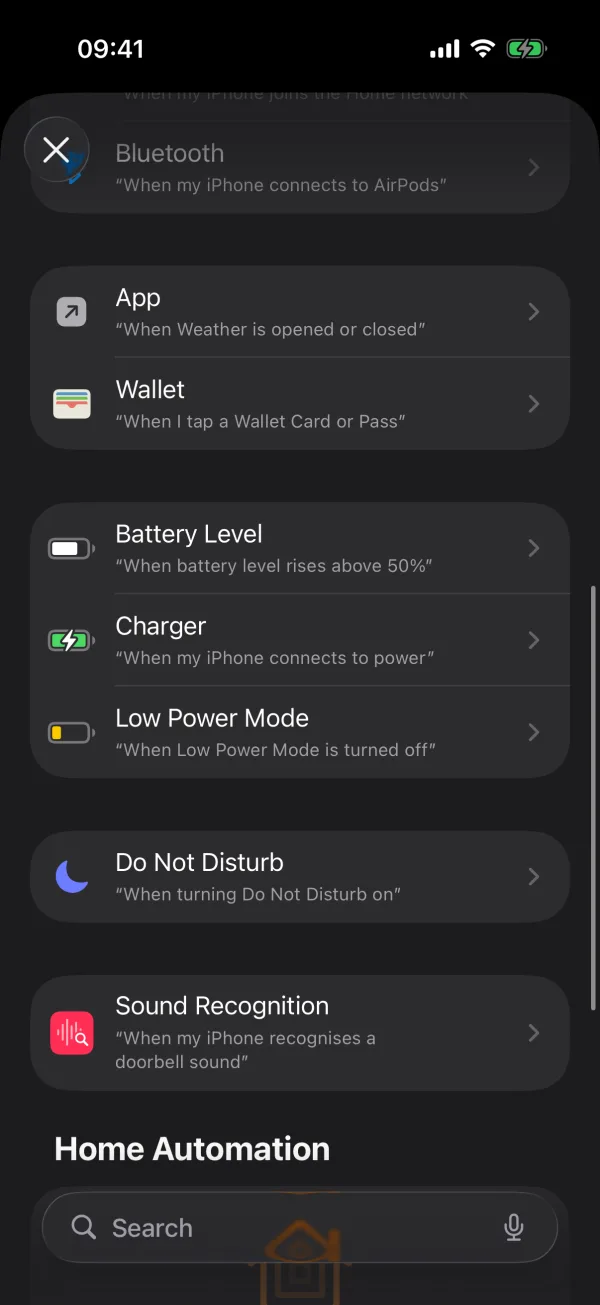
- Tap New Automation, or + if you already have automations. Scroll to your Focus, for example Do Not Disturb, and tap it.
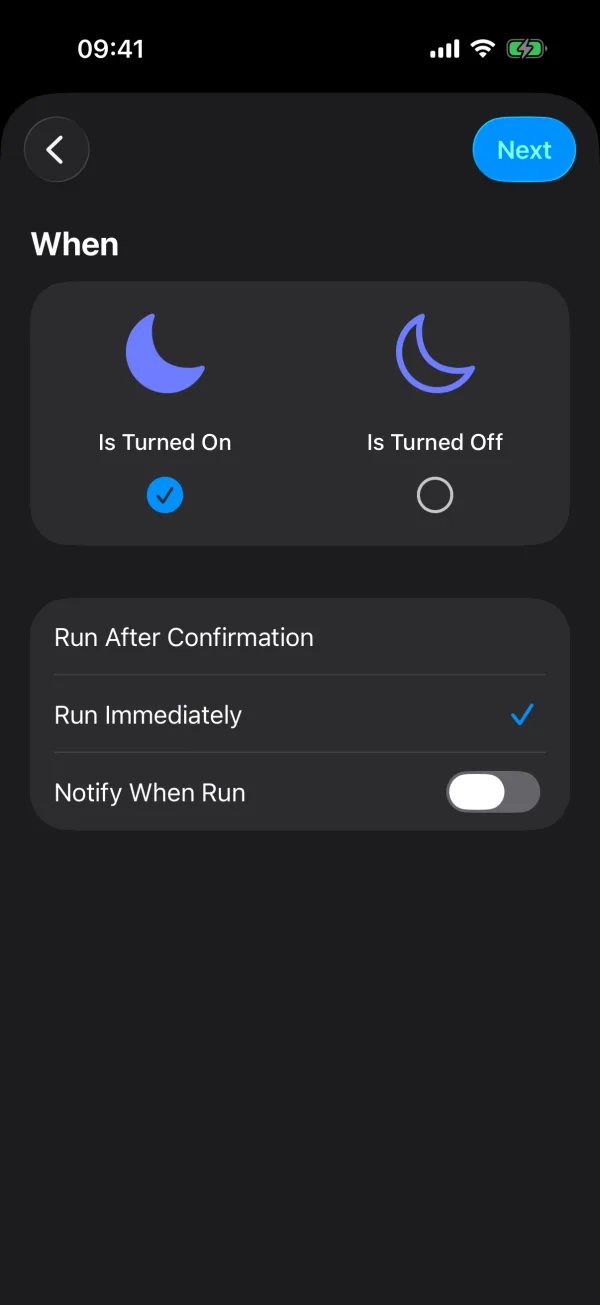
- Keep Is Turned On selected.
- Choose Run Immediately, leave Notify When Run off, then tap Next.
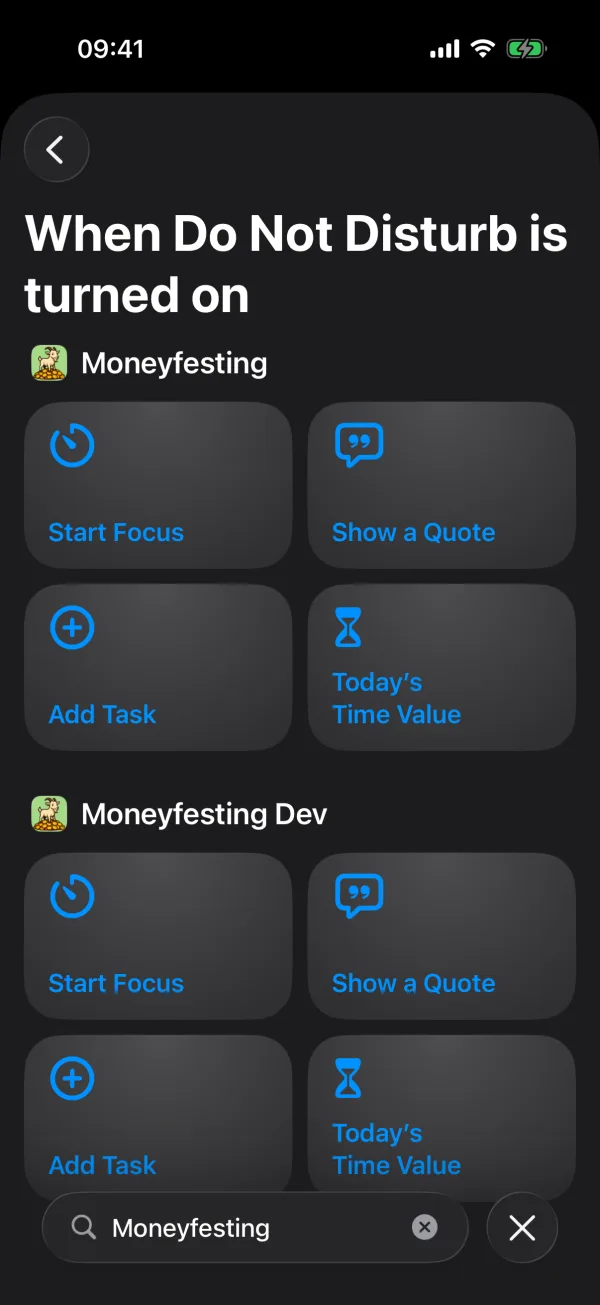
- In the search field at the bottom, type Moneyfesting and tap Start Focus. Shortcuts saves the automation straight away and lists it as Start Focus Session.
Run Immediately matters. With Run After Confirmation, iOS asks before every run, and the session waits until you tap the notification.
Try it
Turn on your Focus in Control Center. Moneyfesting should open and start a session. End the test session in the app.
If the session does not start
- In Shortcuts, under Automation, check that the automation names your Focus and Start Focus Session, and that it runs immediately.
- If Moneyfesting opens on its subscription screen, the session needs Moneyfesting Pro.
- Right after an iPhone restarts, automations can take a minute or two to start running again.
- To see whether the automation runs at all, turn on Notify When Run for a moment. A banner appears each time it runs. Turn it off again once the session starts.
A banner appears each time
Open the automation in Shortcuts and turn off Notify When Run.
Questions
Which Focus should I use?
Any Focus works. You can make one automation for each Focus that should start a session.
Can the session end when the Focus turns off?
Not yet. End the session in Moneyfesting, or touch and hold the Moneyfesting icon on the Home Screen and choose Stop blocking.
How do I turn it off?
In Shortcuts, tap Automation, swipe left on the automation and tap Delete.
More help
- Apple's guide to setting up a Focus
- Apple's guide to Focus and app triggers in Shortcuts