Block apps at set times
Give a task in your plan a time and a block list, and Moneyfesting blocks those apps while the task runs. No focus session needed. Repeat it every day for a routine, such as no social apps before 9:00 or none during dinner.
Updated 10 November 2026. Steps checked on iOS 26.1.
Create a blocking task
- Open Plan and tap +.
- Type a name for the task and tap Create new task. Or tap + next to one of the Task Templates.
- Under Time of day, choose At time, then set Start and Duration. For the whole day, choose All day.
- Turn on Is repeating to block at the same time every day.
- Under Blocked Apps:, tap the block list to choose one, or make a new one and select the apps or categories to block.
- Tap Create. Moneyfesting confirms that the task is in your plan.
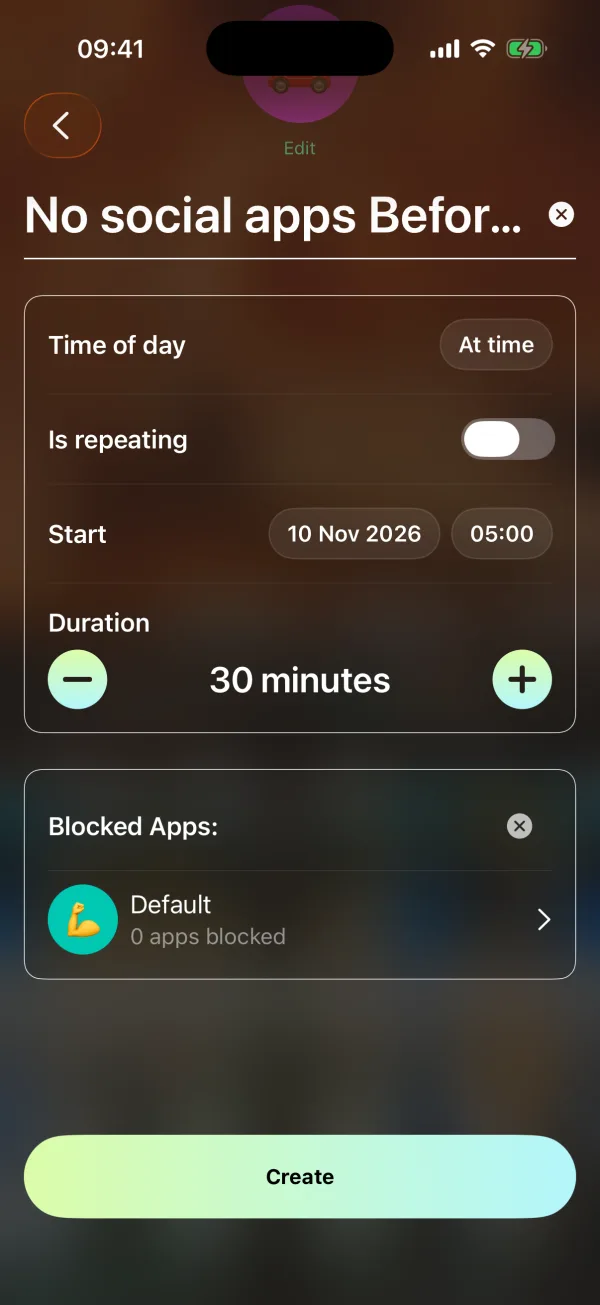
How it works
- Apps are blocked from the start time for the length you set, or for the whole day with All day.
- Tasks set to Anytime never block, even with a block list.
- Is repeating repeats the task every day.
- Screen Time access and Moneyfesting Pro are needed, as for focus sessions.
If the apps are not blocked
- "App blocking couldn't be updated yet." The task is saved and Moneyfesting tries again when your plan refreshes. Open Plan again in a minute.
- Still open? Work through When blocked apps still open.
Questions
What is the difference from a focus session?
A focus session starts when you tap Start and runs for the minutes you choose. A timed task blocks on its own at the time you set, every day if it repeats.