Pause before you open a blocked app
Reaching for a blocked app is usually a reflex. With one Shortcuts automation, Moneyfesting turns that reflex into a short pause: a few slow breaths or an affirmation read aloud, and then you decide.
Updated 10 November 2026. Steps checked on iOS 26.1.
What you see
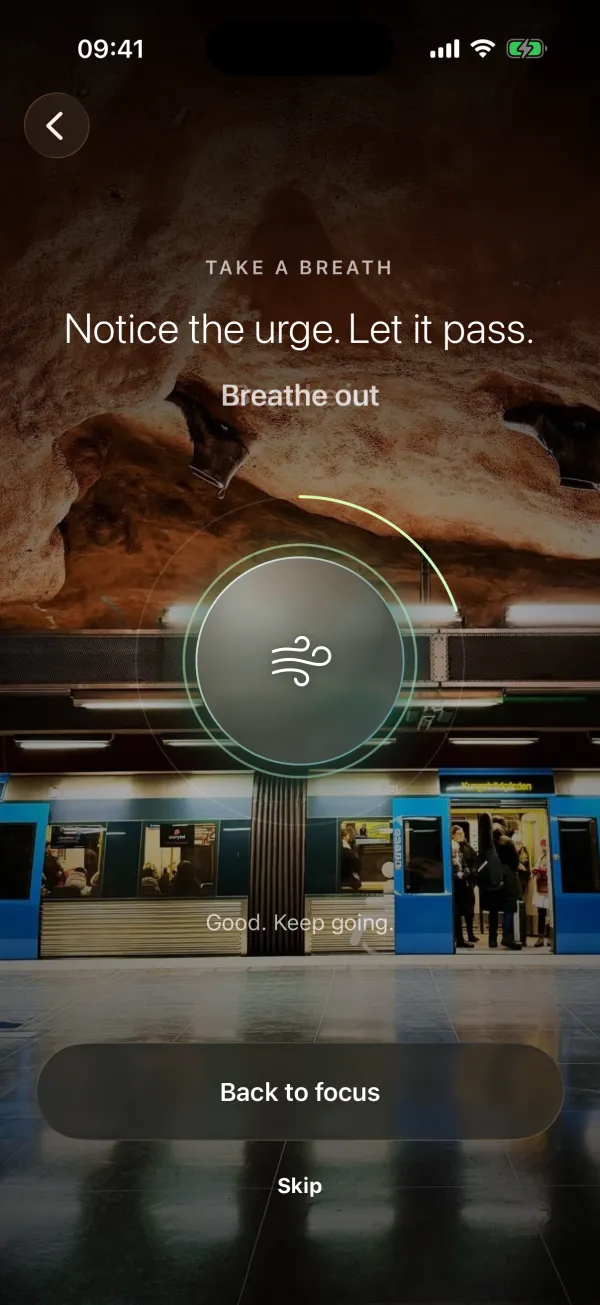
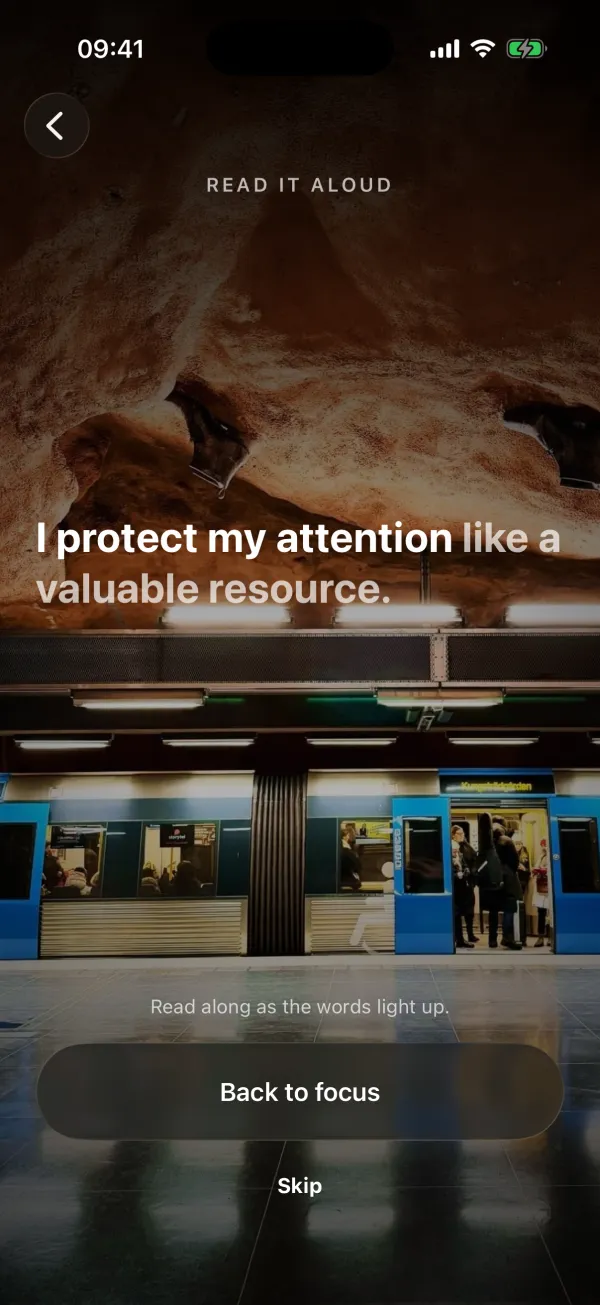
While a focus session runs, open an app it blocks and Moneyfesting comes forward first, full screen, over your session's wallpaper. You pick the pause once, in the app:
- Breathe. An orb fills slowly over 5, 10, 15 or 30 seconds. Breathe in for four seconds and out for six, with a light tap on each turn.
- Read aloud. One, three or five short affirmations light up word by word. Say each one out loud and the next appears. If you leave the microphone off, the words light up at a reading pace instead.
- Block screen only. No exercise: you see the usual block screen.
Then you choose
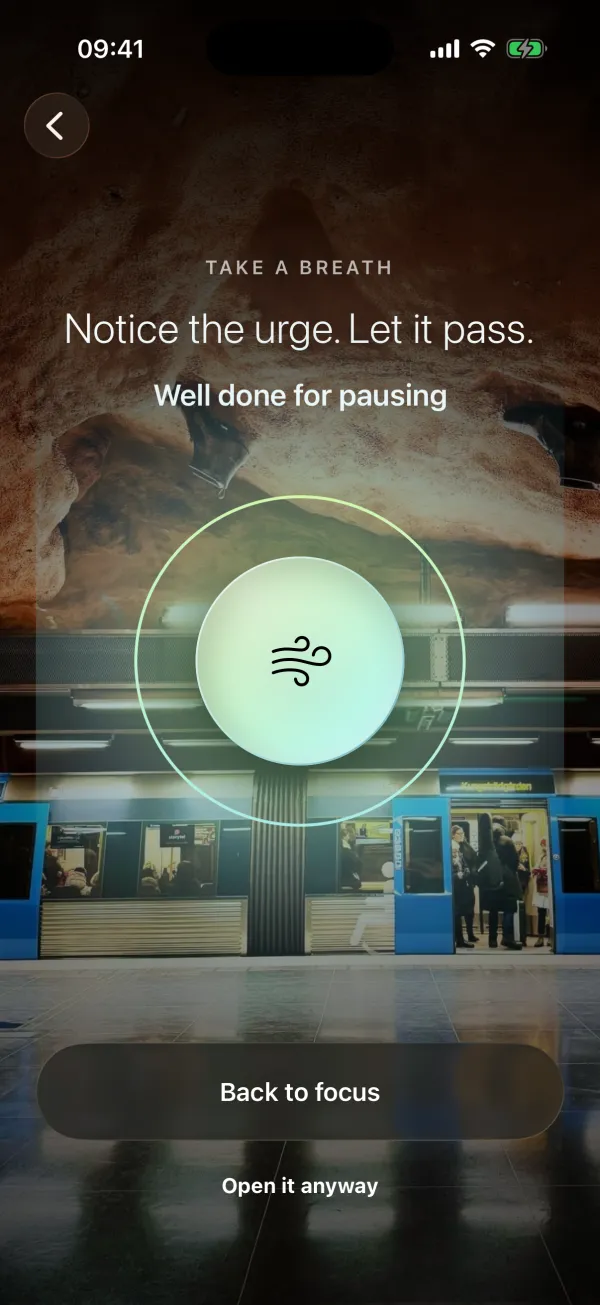
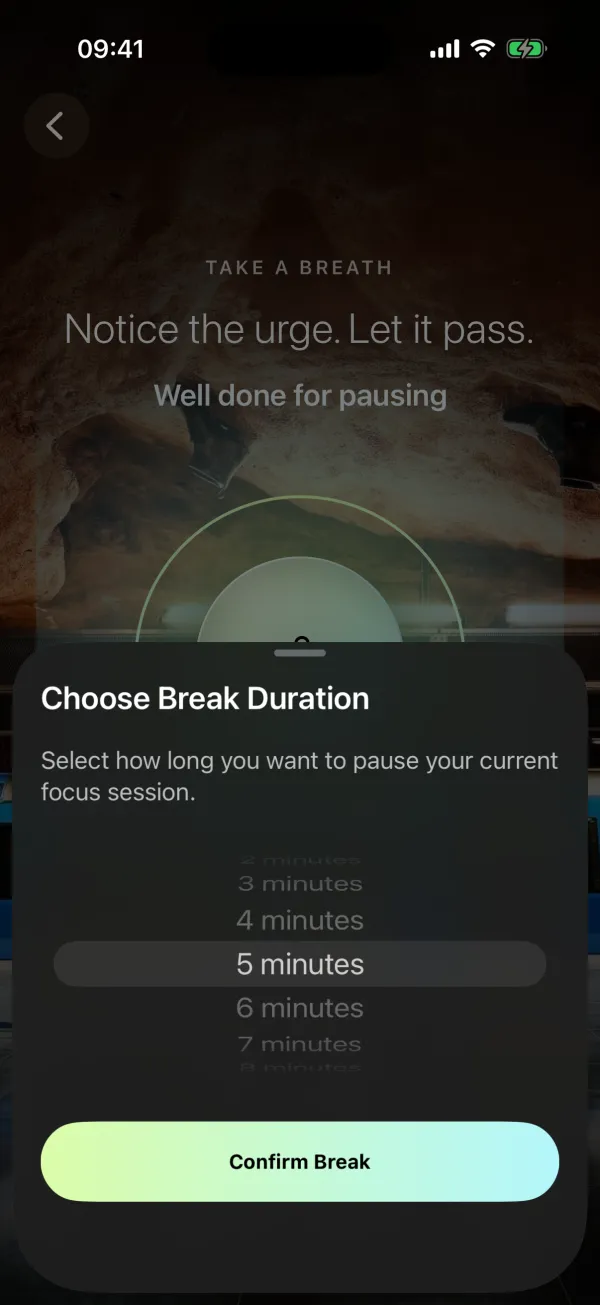
Back to focus is the big button at the bottom. It takes you back to your session, and so does the back arrow at the top. Your apps stay blocked.
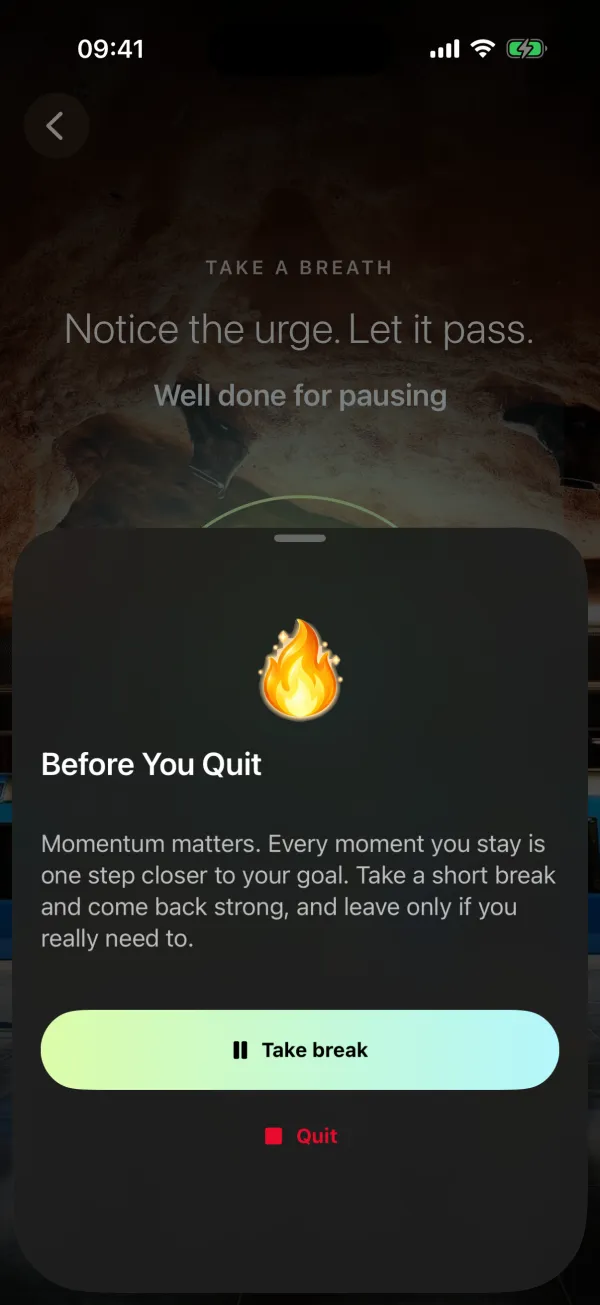
If you still want the app, tap Open it anyway under it once the exercise ends. Before You Quit then asks once more:
- Take break lets you pick a break from 1 to 15 minutes. Your apps open freely, and blocking turns back on by itself when the break ends.
- Quit ends the session.
Leaving always takes at least two taps, and nothing on the screen scolds you for it. Moneyfesting also never opens the app for you afterwards: if you still want it, you open it yourself, on purpose.
Skip
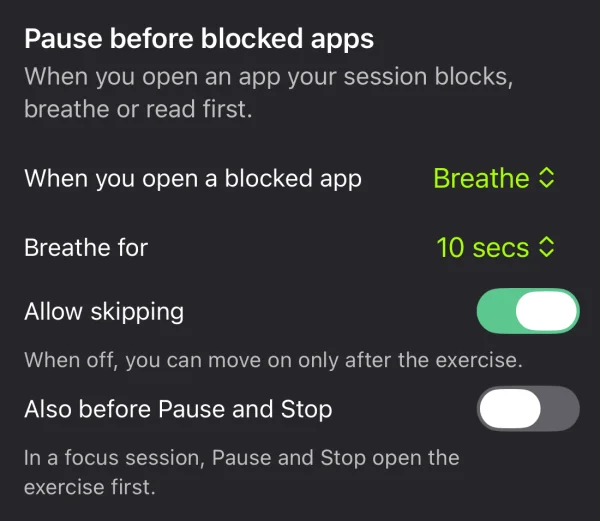
While the exercise runs, a small Skip link sits where Open it anyway appears later, for the moments you really can't wait. It leads to the same Before You Quit question. To finish the exercise every time, turn off Allow skipping in Automations.
Before Pause and Stop too
Turn on Also before Pause and Stop in Automations, and the session screen's Pause and Stop open the same exercise first. After it, Continue leads to the break length or to Before You Quit. It is off unless you turn it on.
Before you start
- An iPhone with iOS 26 or later, and Apple's Shortcuts app, which comes with it.
- Moneyfesting Pro, which includes focus sessions and blocking.
- A focus session with the apps you want to pause before. The pause appears only while a session runs.
Set it up
It takes about two minutes, once.
In Moneyfesting
- Open Profile, then Automations.
- Under Pause before blocked apps, choose Breathe, Read aloud or Block screen only, and how long to breathe or how many affirmations to read.
- Tap Open Shortcuts.
In Shortcuts
- Tap Automation.
- Tap New Automation, or + if you already have automations, then choose App.
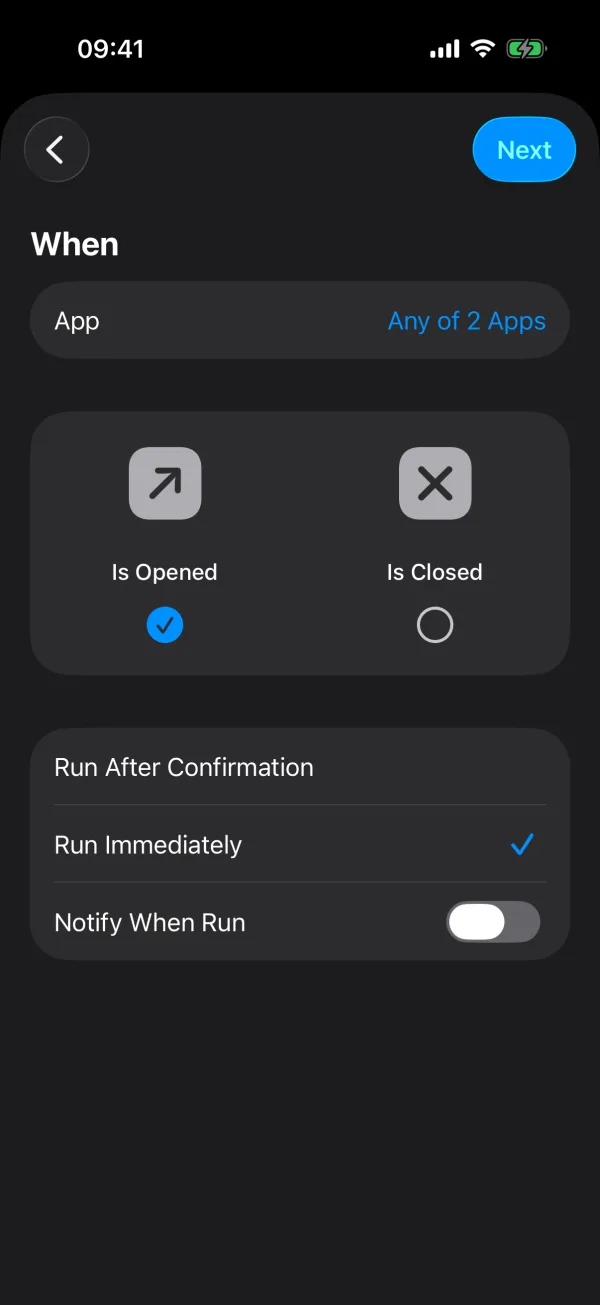
- Tap Choose, pick the apps your sessions block and tap ✓. Keep Is Opened selected.
- Choose Run Immediately, leave Notify When Run off, then tap Next.
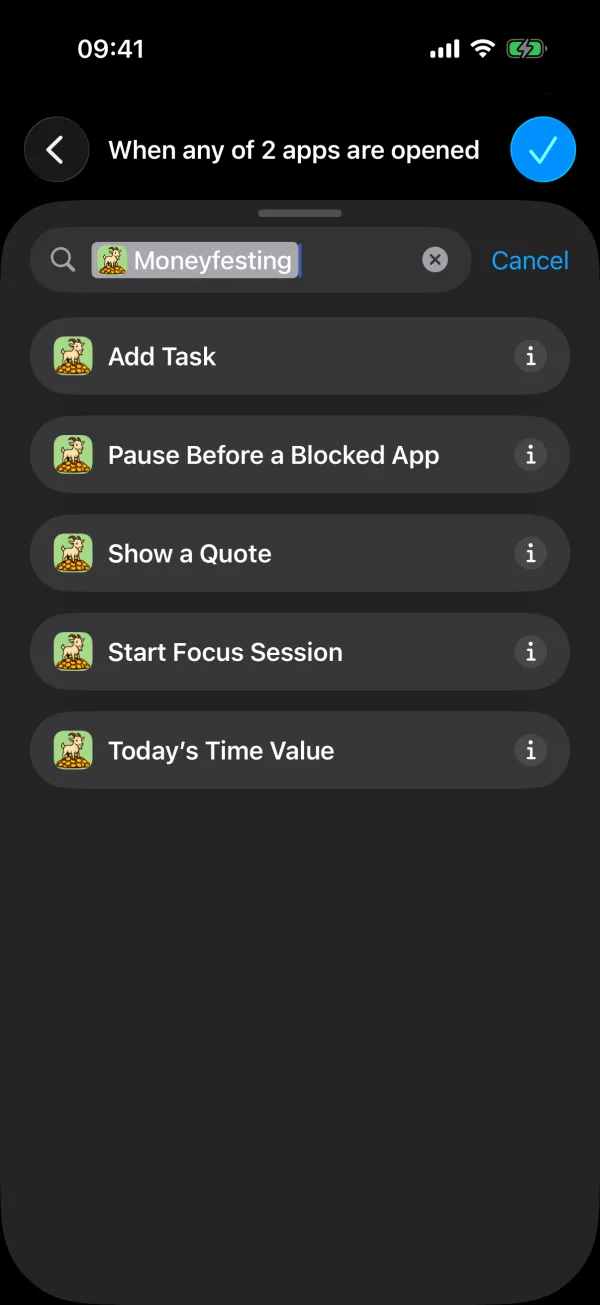
- Tap Create New Shortcut. The search field on this screen lists only four Moneyfesting actions, and the pause is not one of them.
- Tap Search Actions, type Moneyfesting, tap Moneyfesting, then choose Pause Before a Blocked App.
- Tap ✓ to save the automation.
Run Immediately matters. With Run After Confirmation, iOS asks before every pause and the moment is gone. Pick only apps that your sessions block, too: while a session runs, every app in the automation shows the pause.
Try it
Start a short focus session and open one of the apps you picked. The pause should appear within a second or two. Tap Back to focus to finish the test.
When the pause appears
- Only during a focus session you started. At any other time the automation runs quietly and opens nothing.
- Not during a break. A break lifts the block, so your apps open straight away until it ends.
Why a short pause works
Many app openings are habit rather than a decision, and a few seconds between the urge and the app is often enough to notice it. A 2023 field study in PNAS followed 280 people who used one sec, an app with a pause like this one, for six weeks. They closed the app after the pause in 36% of attempts, and opened those apps 57% less often by the end. The study found that an easy way to back out mattered more than any message, which is why Back to focus is the biggest button on the screen.
If the pause does not appear
Quick checks first:
- A focus session is running and is not on a break.
- In Shortcuts, under Automation, the automation lists your apps and runs immediately.
- Moneyfesting is set to Breathe or Read aloud, not Block screen only.
The action is missing from the search
The search right after Next shows only four Moneyfesting actions. Tap Create New Shortcut first, then search in Search Actions.
Nothing happens when you open the app
Open the automation in Shortcuts and check that its action is Pause Before a Blocked App. Scheduled blocks and task blocks show the block screen only: the pause belongs to focus sessions. To see whether the automation runs at all, turn on Notify When Run for a moment: a banner appears each time it runs. Turn it off again once the pause shows.
It stopped working after a restart
Right after an iPhone restarts, automations can take a minute or two to start running again. Wait a moment and try once more.
A banner appears each time
Open the automation in Shortcuts and turn off Notify When Run.
The words light up on their own
Read aloud listens only with Microphone and Speech Recognition allowed. Turn both on for Moneyfesting in the Settings app. If your iPhone cannot listen in your reading language yet, the words keep a reading pace.
Questions
Does my voice leave my iPhone?
No. Read aloud listens on your iPhone and only checks that you said the words. Nothing is recorded or sent anywhere.
What if I need a blocked app urgently?
Tap Skip, then take a short break or quit. You can also touch and hold the Moneyfesting icon on the Home Screen and choose Stop blocking.
Can I change the pause later?
Yes, in Profile, then Automations. The Shortcuts automation stays as it is.
Can I add more apps later?
Yes. Open the automation in Shortcuts, tap the apps and pick more. Add the same apps to your focus session's block list.
More help
- Apple's guide to app triggers in Shortcuts
- Apple's guide to creating a personal automation